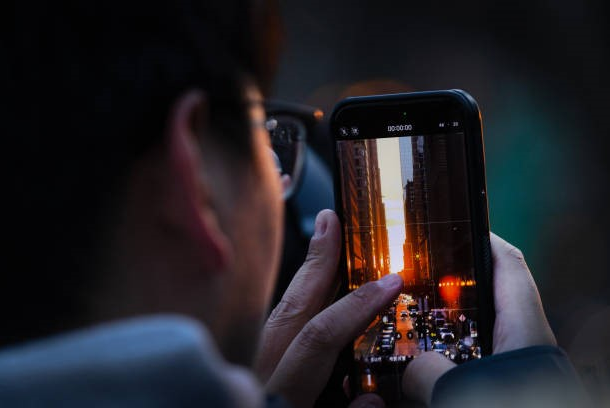
The sun goes down, but screens often become brighter parts of the evening. Across the United States, people move from daylight into dim bedrooms, living rooms, offices, and commutes while continuing to scroll, stream, shop, or work. That shift can quietly reshape screen brightness habits, sometimes without users noticing the pattern at all.
A setting that felt normal earlier may suddenly seem too sharp, too dull, or strangely distracting. What happens after sunset is not only about visibility. It also reveals how quickly people adapt their devices to match the night’s mood and rhythm.
Key Takeaways
- Match brightness to surrounding light.
- Use dark mode when it improves readability.
- Keep soft background lighting after sunset.
- Adjust every device separately.
- Reduce screen intensity before bedtime.
Screen Brightness Habits That Change After Sunset and Before Bedtime
- Brightness Usually Drops with Room Lighting
A display that feels comfortable during daylight may appear excessively bright in a dark room. As evening light softens, users often manually reduce brightness or rely on automatic brightness controls. These changing screen-brightness habits help keep the display closer to the ambient light level after sunset.
The American Academy of Ophthalmology recommends adjusting screen brightness to match the surrounding light level. When a display glows much brighter than the room, the difference can make viewing less comfortable.
Useful evening adjustments include:
- Lowering brightness gradually after sunset
- Avoiding maximum brightness in a dark room
- Keeping a soft lamp near the screen
- Reducing glare from windows and reflective walls
- Increasing text size instead of moving closer
The goal is not to make the screen as dark as possible. Brightness should remain high enough for text, images, and controls to be viewed clearly without squinting.
- Automatic Brightness Becomes More Noticeable
Many devices use ambient-light sensors to automatically adjust the display. As the room becomes darker, the device lowers its brightness to reduce the contrast between the screen and the environment.
Automatic adjustment is convenient, but it may not suit every situation. A screen can become too dim when the sensor is covered, when a person sits near a lamp, or when content contains very dark backgrounds.
People may override automatic settings when:
- Reading small text
- Editing photographs or videos
- Working with detailed spreadsheets
- Watching dark scenes
- Moving between bright and dim rooms
- Using a device beneath directional lighting
Consistent screen brightness habits involve reviewing the actual display rather than assuming the automatic setting is always comfortable.
- Dark Mode Often Replaces Bright White Backgrounds
After sunset, many users switch from light interfaces to dark mode. Dark mode typically places lighter text on darker backgrounds, reducing the amount of bright white space across the display.
The American Academy of Ophthalmology notes that night or dark modes can reduce screen brightness and glare, helping the eyes adjust more easily to surrounding light.
Dark mode may feel useful for:
- Messaging in a dim room
- Browsing menus and applications
- Reading short passages
- Checking notifications
- Using navigation apps
- Watching content without a bright interface
However, dark mode is not automatically better for every task. Some people find long documents, detailed text, or low-contrast interfaces easier to read when letters are dark on a light background. The best choice depends on text size, contrast, visual needs, and room lighting.
- Warmer Display Settings Increase at Night
Night-shift settings reduce cooler blue tones and give the screen a warmer appearance. Many devices allow these settings to activate automatically at sunset or at a chosen time.
Evening light exposure can influence the body’s sleep timing, particularly when the light is bright and rich in short blue wavelengths. Research has associated nighttime exposure to light-emitting devices with melatonin suppression and increased alertness.
A warmer screen does not make unlimited nighttime use harmless. Brightness, viewing duration, distance, content, and bedtime timing also matter. The American Academy of Ophthalmology recommends limiting screen use before bed when sleep disruption is a concern, noting that night mode may be a useful additional step.
- Evening Room Lighting Affects Screen Settings
Screen brightness cannot be evaluated separately from the room. A low display setting may still feel uncomfortable in complete darkness, while the same setting may appear balanced beside a soft lamp.
Better evening lighting usually involves:
- Indirect lamps instead of exposed bright bulbs
- Light positioned away from the screen surface
- Reduced reflections on glossy displays
- Moderate background illumination
- Dimmer lighting closer to bedtime
These conditions often lead to more stable screen brightness habits because users do not need to keep raising and lowering the display to compensate for extreme room contrast.
- Brightness Often Drops Again Near Bedtime
The final adjustment frequently occurs during the hour before sleep. Users may lower brightness further, activate bedtime mode, silence notifications, or stop using larger screens. These nighttime screen brightness habits often reflect the shift from active device use toward a calmer bedtime routine.
These changes matter because more than one-quarter of American adults report sleeping fewer than seven hours per night. Screen brightness is not the only cause of insufficient sleep, but managing evening light and device use can support a more consistent bedtime routine.
A practical nighttime routine may include dimming the display, using a warm setting, reducing stimulating content, and placing the device away from the bed before sleep.
Conclusion
Evening screen use becomes more comfortable when display settings respond to changing light rather than staying fixed throughout the day. Lower brightness, warmer color settings, balanced room lighting, and suitable text contrast can reduce the harsh difference between a bright screen and a dark environment. Automatic controls are useful, but they should still be checked for each task and device.
Healthy screen brightness habits also include reducing unnecessary screen exposure near bedtime and avoiding overly dim settings that make viewing difficult. Small, consistent adjustments can improve visibility, comfort, and nighttime routine across phones, laptops, and televisions.
FAQs
Do clear lens glasses control excessive screen brightness?
Clear lens glasses do not directly lower display brightness. Screen settings and room lighting should be adjusted first, while prescription accuracy and suitable lens coatings may help address separate clarity or reflection issues.
Can lightweight glasses improve evening screen comfort?
Lightweight glasses may reduce pressure on the nose and ears during extended evening use. However, their lower weight does not correct poor brightness, small text, glare, or an unsuitable prescription.
Does minimalist eyewear reduce screen glare?
Minimalist eyewear describes a simple frame style rather than a specific glare-control feature. Reflection reduction depends on the lens coating, while screen glare should also be managed through positioning, lighting, and brightness adjustments.
Are tinted glasses suitable for evening screen use?
Tinted glasses may alter brightness and color perception, making them unsuitable for some nighttime tasks. Strong tints can make a dim display harder to read and may encourage users to increase brightness unnecessarily.
Should brightness settings differ between phones and larger screens?
Yes. Phones are usually viewed closer to the eyes, while laptops and televisions are used from greater distances. Each device should be adjusted separately based on screen size, viewing distance, room lighting, and the type of content being viewed.