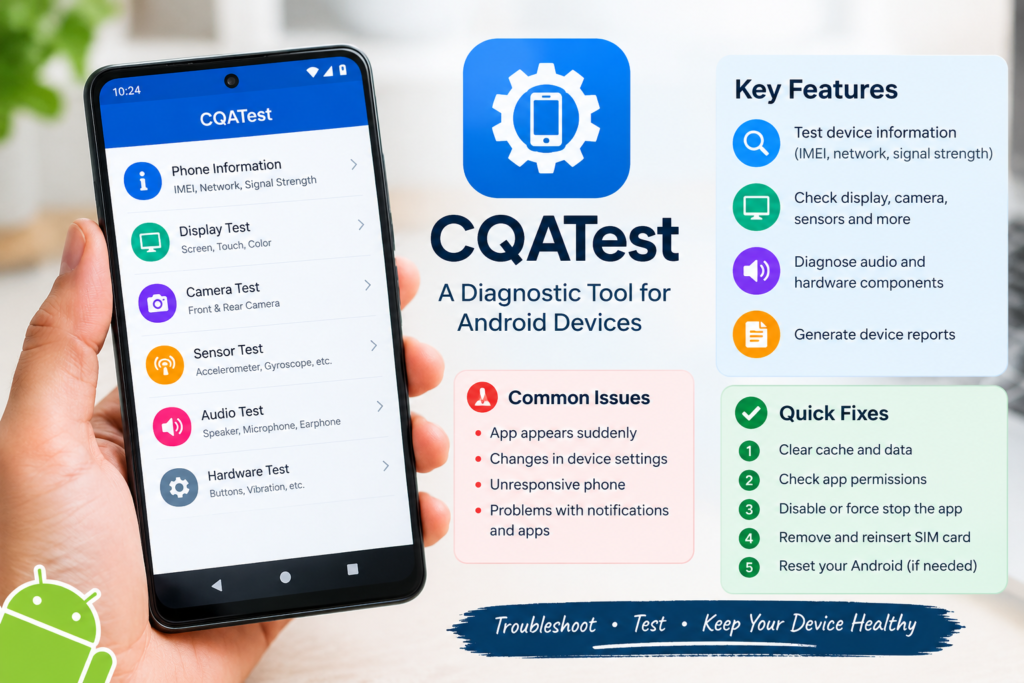
Smartphones contain many built-in system utilities that most users never interact with directly. One such utility is the cqatest app, which is commonly associated with Motorola and other Android devices. It is designed primarily for testing and diagnosing different hardware and software components of a smartphone. Although seeing it unexpectedly can be confusing, the cqatest app is generally considered a diagnostic utility rather than a regular application intended for everyday use.
Understanding the purpose of this tool can help users avoid unnecessary concern. This guide explains what the cqatest app does, why it may appear, what features it can provide, common problems associated with it, and practical troubleshooting methods.
What Is the CQATest App?
The cqatest app is a system-level diagnostic utility that can help evaluate various components of an Android smartphone. CQATest is commonly associated with device quality-control and hardware testing processes. Manufacturers and technicians may use an Android diagnostic tool to check whether different parts of a phone are functioning correctly.
Depending on the smartphone model and software version, diagnostic testing may include the display, touchscreen, cameras, speakers, microphone, sensors, connectivity, battery-related information, and other hardware components. The exact tests available can vary considerably between devices.
Because the cqatest app is often hidden from normal application menus, users may only notice it after a software update, device reset, troubleshooting process, or accidental activation of a diagnostic feature.
Is the CQATest App a Virus?
One of the most common concerns about the cqatest app is whether it is malware. In general, the presence of CQATest on a compatible Android phone does not automatically mean that the device has a virus.
A manufacturer-installed diagnostic utility is different from an unknown third-party application downloaded from the internet. The cqatest app may be part of the phone’s system software and can therefore have access to certain device functions required for testing.
However, users should still pay attention to unusual behavior. If a suspicious application with a similar name was installed from an unknown source, it is worth checking its permissions and installation details. A genuine Android diagnostic tool should normally be associated with the device’s system software rather than an unrelated download.
Why Does the CQATest App Appear?
The cqatest app can become visible for several reasons. A software update may expose a previously hidden system component, while a factory reset or device configuration change can also affect which system utilities are visible.
In some situations, a phone may enter a diagnostic or testing mode because of a software issue or an accidental action. Users may then see CQATest running in the background or listed among active applications.
The appearance of the cqatest app does not necessarily indicate a serious problem. It may simply mean that a diagnostic component has become active. If the phone continues working normally, there may be no reason to take immediate action.
What Can the CQATest App Test?
The exact capabilities of the cqatest app depend on the phone manufacturer, model, Android version, and system software. A typical Android diagnostic tool can provide access to tests designed to evaluate important hardware components.
These tests may include:
- Display and touchscreen functionality
- Front and rear cameras
- Speakers and microphone
- Accelerometer and other sensors
- Buttons and hardware controls
- Network or signal information
- Device information
- Audio components
- Other internal hardware functions
The purpose is to identify potential problems before or during technical servicing. Because the available functions vary, users should not assume that every device provides the same diagnostic menu.
Common Problems Associated With CQATest
Although the cqatest app itself is generally a diagnostic component, users may report problems when it remains active or appears unexpectedly. Possible symptoms can include unusual notifications, changes in device behavior, applications becoming unresponsive, or certain settings behaving differently.
In some cases, the issue may not actually be caused by CQATest. Android system processes can interact with other software, and a temporary operating-system glitch may occur at the same time that the cqatest app becomes visible.
Before making major changes, users should restart the phone and check whether the issue continues.
How to Troubleshoot the CQATest App
If the cqatest app is causing noticeable problems, several basic troubleshooting steps can be considered.
1. Restart the Smartphone
A simple restart can close temporary processes and resolve minor software glitches. Restart the device normally and check whether CQATest continues to appear.
2. Clear Cache or App Data
On supported devices, users can open Settings > Apps and look for CQATest or related system applications. If the options are available, clearing temporary cache data may help resolve unexpected behavior.
Clearing application data should be done carefully because system utilities may depend on stored configuration information.
3. Check Permissions
Review the permissions associated with the cqatest app if Android provides access to them. Diagnostic software may legitimately require hardware-related permissions, but users should still understand what access is being granted.
4. Force Stop When Appropriate
If the diagnostic utility is continuously running and the device provides a Force Stop option, stopping the process may temporarily resolve the issue. System applications may restart automatically, so this should not be considered a permanent removal method.
5. Check for Software Updates
An outdated operating system can sometimes cause unexpected system behavior. Check the phone’s software update section and install official updates when available.
6. Consider a Factory Reset Only as a Last Resort
If severe software problems continue after other troubleshooting steps, a factory reset may be considered. However, this removes personal data and settings, so a complete backup should be created first. A reset should not be performed solely because the cqatest app appears on the device.
Should You Remove the CQATest App?
Removing a system diagnostic utility is not usually necessary. The cqatest app may be integrated into the phone’s software, and deleting or modifying system components can potentially create additional problems.
If the phone works normally, leaving the Android diagnostic tool installed is generally the safer approach. Users who experience persistent issues should consider contacting the smartphone manufacturer’s official support service rather than attempting aggressive system modifications.
Final Thoughts
The cqatest app can look unfamiliar because it is usually hidden from everyday Android use, but its primary purpose is device diagnosis and testing. It can help evaluate components such as the display, camera, sensors, audio hardware, and other smartphone functions.
Seeing the cqatest app does not automatically mean that a phone has malware or serious damage. Its behavior can depend on the device model and software version. Basic troubleshooting, software updates, and careful permission management can address many temporary issues.
For users experiencing persistent problems, professional technical support is preferable to deleting system files or using unverified tools. Understanding the role of an Android diagnostic tool can make smartphone troubleshooting less confusing and help users make safer decisions about their devices.