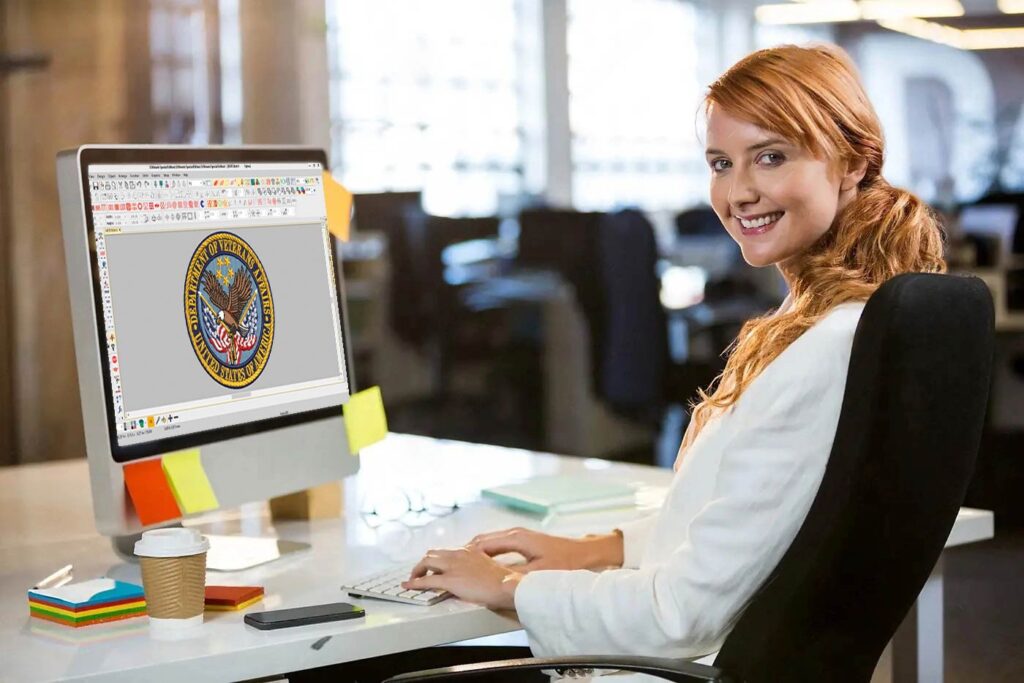
You have a Babylock embroidery machine, a tool renowned for its precision and ease of use. You also have a logo, ready to become a stitched emblem on a polo, hat, or bag. But that digital logo file and your physical machine speak different languages. To bridge this gap and achieve crisp, professional results, you need to learn how to Convert Logo To Embroidery For Babylock. This process, known as digitizing, is the art of translating your flat image into a perfect set of stitch instructions. “Perfect stitches” aren’t an accident; they are the direct result of careful planning, correct techniques, and an understanding of how thread interacts with fabric. This guide will walk you through the professional pathway to ensure your Babylock produces results worthy of its reputation.
The Foundation: It’s Digitizing, Not Just Converting
First, let’s demystify the core task. You are not simply changing a file extension. A JPG or PNG is a picture made of pixels. Your Babylock machine requires a .PES file (or sometimes .PHC), which is a detailed blueprint of needle movements, stitch types, and color changes.
The act of creating this blueprint is digitizing. Think of it like this: your logo is the architectural sketch of a house. The .PES file is the full set of engineering plans, electrical schematics, and material lists needed to build it. A simple “converter” just traces the sketch; a true digitizer builds the plans. For perfect stitches, you need the plans.
Step 1: Preparing Your Logo for Success
The journey to perfect stitches begins long before you open embroidery software. The quality of your source logo dictates your ceiling for quality.
-
Demand a Vector File: This is the single most important step. A vector file (
.AI,.EPS,.PDF,.SVG) is built with mathematical paths, not pixels. This means it can be scaled infinitely without losing sharpness, giving the digitizer perfectly clean lines to work from. If you have this, you’ve won half the battle. -
If You Only Have a Raster Image (JPG, PNG): You must use the highest resolution version possible. A tiny, 72-DPI logo from a website will become a blurry, pixelated mess when enlarged for stitching. Increase contrast and simplify the image before you begin.
-
Consider the End Use: Be ready to answer: What type of fabric will this be stitched on? (A dense design for a towel is different than for a lightweight polo). What is the final size? This information is crucial for the digitizer.
Step 2: The Two Paths to a Perfect PES File
You have two primary routes: doing it yourself with software or partnering with a professional service.
Path A: DIY Digitizing with Babylock Software
If you want to learn the craft, Babylock offers integrated solutions.
-
Software Options: ArtLink or Inspira software suites are designed to work seamlessly with Babylock machines. They provide tools for basic auto-digitizing and manual editing.
-
The Reality: There is a significant learning curve. To achieve “perfect stitches,” you must move beyond auto-functions and learn to manually assign stitch types (Fill, Satin, Running), apply underlay, and set pull compensation. This takes time and practice.
Path B: Professional Digitizing Services (The Recommended Path for Perfection)
For a business logo, team gear, or any project where quality is paramount, this is the most reliable and efficient choice.
-
The Process: You provide your vector logo to a service. A trained digitizer manually creates the stitch file using industrial software. They engineer it for your specific garment, applying the techniques necessary for perfect stitches.
-
Why It Delivers Perfection: Professionals don’t guess. They build in underlay (a foundational stitch layer that stabilizes fabric and prevents puckering). They apply pull compensation (adjusting shapes so they sew out to the correct visual size). They optimize stitch paths for clean sewing with minimal jumps. You receive a ready-to-stitch, perfected .PES file.
The Pillars of Perfect Stitches in Your File
Whether you DIY or hire a pro, these are the non-negotiable elements that must be in your digitized file:
-
Underlay: The Hidden Hero. This is the #1 factor separating amateur from professional results. Underlay is stitched first to stabilize the fabric, prevent puckering, and provide a raised base for top stitches. Without it, even a beautiful design can sink into the fabric and pull unevenly.
-
Correct Stitch Type & Density:
-
Fill Stitches: For solid areas. Density must be matched to the fabric—lighter for knits, denser for stable twill.
-
Satin Stitches (Column): For borders and text. Width and density must be set to create a smooth, glossy column without thread breaks.
-
Running Stitches: For fine details.
-
-
Pull Compensation: Fabric pulls under the tension of stitches. A digitized circle will sew out smaller. Pull compensation slightly widens shapes in the file so they stitch to their intended size. This is critical for maintaining logo proportions.
-
Logical Stitch Sequencing: The order in which the design is sewn should minimize thread trims and long jumps between sections. This creates a cleaner sew-out, reduces runtime, and lowers the chance of errors.
Step 3: The Non-Negotiable Test Sew
Perfect stitches are proven on the fabric, not on the screen. Never run a new design directly onto your final garment.
-
The Protocol: Hoop a scrap piece of the exact fabric you’ll use for the final project.
-
Use the Correct Stabilizer: This is as important as the file itself. For stretchy fabrics, use cut-away stabilizer. For stable wovens, tear-away is often sufficient. Stabilizer is your machine’s work surface.
-
Stitch, Observe, and Analyze: Run the file. Look for puckering, registration errors (colors not aligning), or thread breaks.
-
Iterate: If you see issues, adjustments are needed in the digitized file (density, underlay, etc.). A professional service will often handle these revisions for you.
Common Pitfalls to Avoid for Perfect Results
-
Pitfall: Using Free Online Converters. These auto-digitizing tools create dense, unsewable files with no understanding of fabric or underlay. They guarantee poor quality.
-
Pitfall: Ignoring Stabilizer. The best .PES file in the world will fail without the proper stabilizer hooped beneath the fabric.
-
Pitfall: Overlooking Hooping Technique. Fabric must be drum-tight in the hoop. Loose fabric is a primary cause of misalignment and poor registration.
Your Action Plan for Flawless Embroidery
-
Prepare: Secure a vector file of your logo. Know your garment type and desired size.
-
Choose Your Path: For best results, hire a professional digitizing service. To learn, invest in Babylock software and prepare for a practice curve.
-
Digitize or Order: Create the file yourself or submit your order to a service, specifying Babylock (.PES) format.
-
Test: Hoop scrap fabric with stabilizer and run the design. Inspect critically.
-
Stitch: Only after a successful test, proceed to your final project.
Conclusion: From Digital Asset to Tangible Excellence
Mastering how to Convert Logo To Embroidery For Babylock with perfect stitches is about respecting the entire process. It acknowledges that your machine is a precision instrument that requires equally precise instructions. By starting with pristine vector artwork, leveraging professional digitizing expertise (whether your own or a service’s), and validating your work with a rigorous test sew, you transform your logo from a simple graphic into a durable, textured, and professional emblem.
Perfect stitches are the hallmark of quality. They communicate care, professionalism, and attention to detail. By following this guide, you ensure your Babylock machine is equipped to deliver exactly that, turning your branded vision into a flawlessly stitched reality.