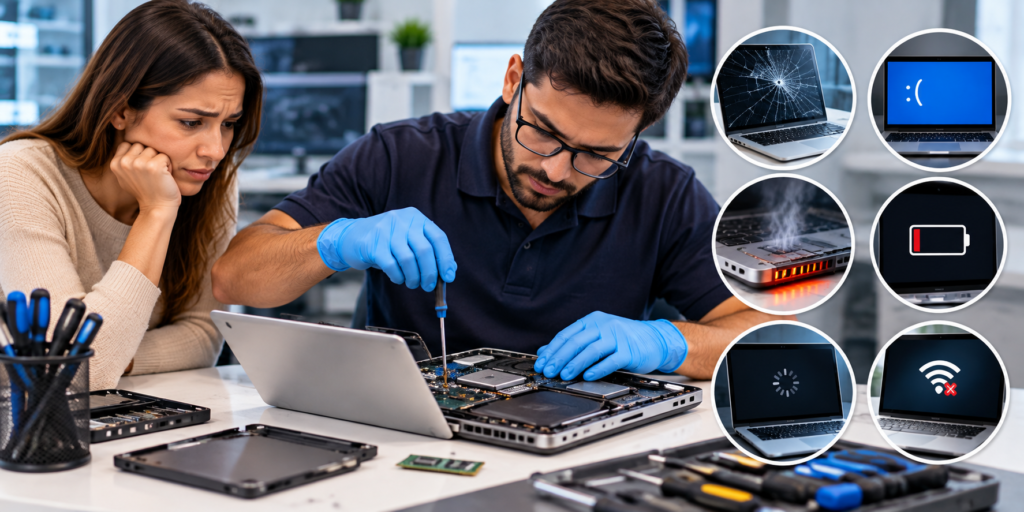
A laptop can go from working perfectly to becoming almost unusable without much warning. It may suddenly become slow, refuse to start, overheat, shut down unexpectedly, display strange errors, or stop connecting to the internet.
While some minor problems can be solved with a restart or basic troubleshooting, others point to hardware faults or deeper software issues.
Trying random fixes can sometimes make the situation worse. You could accidentally delete important files, damage a component, or spend hours troubleshooting a problem that requires professional equipment.
Knowing when to stop troubleshooting and seek professional help can save time, protect your data, and potentially prevent a more expensive repair.
If you need to fix computer in Adelaide, understanding the common problems that require professional attention can help you make the right decision before a minor fault becomes a major one.
Laptop Won’t Turn On
Few laptop problems are more concerning than pressing the power button and getting no response.
A laptop that will not turn on may have a simple cause, such as a depleted battery or faulty charger. However, the problem can also involve the charging port, battery, power circuitry, motherboard, or another internal component.
Before assuming the laptop has failed completely, check whether the charger is connected correctly and whether any charging or power indicator appears.
If there are still no signs of power, avoid repeatedly pressing the power button or attempting unfamiliar hardware repairs.
A professional technician can test the charger, battery, power connection, and internal components to determine where the fault originates.
Laptop Turns On but Does Not Boot
Another common problem occurs when the laptop powers on but fails to load the operating system.
You may see a manufacturer’s logo, an error message, a blank screen, or a continuous loading cycle.
This can happen because of corrupted system files, a failing storage drive, boot configuration problems, or other software and hardware issues.
If important files are stored on the laptop, repeated attempts to reinstall the operating system can be risky.
A technician can diagnose the cause before taking steps that could affect your data.
Professional diagnosis is particularly important when the laptop contains work files, photographs, financial documents, or other information that has not been backed up.
Laptop Is Extremely Slow
A laptop that gradually becomes slower can be frustrating, especially when basic tasks start taking several minutes.
Slow performance can have many causes.
Too many background applications, limited storage, outdated software, malware, insufficient memory, overheating, or a failing hard drive can all affect performance.
Simply deleting a few files may not solve the underlying problem.
A professional can assess system performance and determine whether the issue relates to software, hardware, storage, or a combination of factors.
Depending on the laptop’s age and condition, the solution may involve software optimisation, storage replacement, memory upgrades, malware removal, or other repairs.
Laptop Overheats or Shuts Down Unexpectedly
Laptops generate heat during normal use, but excessive heat is not something to ignore.
If your laptop becomes unusually hot, its fan runs constantly, or it shuts down during demanding tasks, the cooling system may not be working properly.
Dust can accumulate inside the laptop and restrict airflow. A cooling fan may also become worn or fail completely.
In some cases, dried thermal material can affect heat transfer from internal components.
Continuing to use an overheating laptop can place additional stress on internal hardware.
A technician can inspect the cooling system, clean internal components where appropriate, test temperatures, and identify whether a fan or another component needs attention.
Laptop Battery Drains Very Quickly
Laptop batteries naturally lose capacity as they age.
However, a battery that suddenly begins losing charge much faster than usual may indicate more than normal wear.
Background applications, incorrect power settings, battery degradation, or hardware issues can contribute to rapid battery drain.
A professional can assess the battery’s condition and determine whether replacement is appropriate.
If the battery is swollen, stop using the laptop and seek professional assistance promptly.
A swollen battery should not be punctured, squeezed, or removed without appropriate expertise because damaged lithium-ion batteries can present safety risks.
Laptop Battery Is Not Charging
A laptop that refuses to charge can make it difficult to work away from a power outlet.
The cause may be the charger, charging cable, power adapter, charging port, battery, or internal charging circuitry.
Try checking the charger and power connection first.
If the laptop still does not charge, avoid forcing the connector into the port.
A loose or damaged charging port may require repair, while an ageing battery may need replacement.
Professional testing can help determine which component is actually responsible instead of replacing parts unnecessarily.
Laptop Screen Flickers or Goes Black
Screen problems can make a laptop difficult or impossible to use.
Flickering, random black screens, distorted images, lines across the display, or inconsistent brightness may result from a damaged screen, loose connection, graphics hardware, or software drivers.
If the screen is physically cracked, replacement may be necessary.
However, not every display problem means the screen itself has failed.
A technician can test the laptop and determine whether the fault lies with the display panel, cable, graphics system, or software.
This distinction matters because replacing a screen when the actual problem is elsewhere can waste money.
Keyboard Keys Stop Working
Individual keys can stop responding because of dirt, liquid exposure, physical damage, worn components, or an internal keyboard fault.
If only one or two keys have stopped working, cleaning may sometimes resolve the issue.
However, widespread keyboard failure often points to a deeper problem.
Liquid spills require particular caution.
If liquid has been spilled over the keyboard, switch the laptop off and disconnect the power source rather than continuing to use it to see whether it still works.
Professional assessment can help determine whether the keyboard or other internal components have been affected.
Touchpad Stops Responding
A non-responsive touchpad can be caused by software settings, disabled drivers, hardware damage, or internal connection problems.
Before assuming the touchpad has failed, check whether it has accidentally been disabled using the laptop’s function keys or settings.
If the touchpad remains unresponsive, a technician can determine whether the issue is software-related or requires hardware repair.
This is especially useful when the problem occurs alongside other symptoms, such as keyboard issues or liquid damage.
Laptop Keeps Freezing
Frequent freezing can indicate that something is wrong with the laptop’s software or hardware.
The system may become unresponsive while opening applications, browsing the internet, transferring files, or performing other everyday tasks.
Possible causes include insufficient memory, overheating, corrupted software, malware, driver problems, storage issues, or failing hardware.
A restart may temporarily resolve the problem without addressing its cause.
If freezing happens repeatedly, professional diagnosis can identify patterns and underlying faults.
Laptop Displays a Blue Screen
A blue screen or sudden system crash can be alarming.
These errors may occur because of faulty drivers, corrupted system files, incompatible software, memory problems, storage failure, or other hardware issues.
Occasional system errors can happen, but repeated crashes should not be ignored.
If the problem is associated with a failing storage drive or memory component, continuing to use the laptop could potentially increase the risk of data loss.
A technician can investigate the error messages, test relevant hardware, and identify the likely source.
Laptop Is Infected With Malware
Malware can affect laptop performance, privacy, and security.
Signs can include unusual pop-ups, unexpected applications, browser redirects, suspicious system behaviour, or significant slowdowns.
Some forms of malware are designed to operate quietly, making them difficult to identify without appropriate security tools.
If you suspect that your laptop has been compromised, avoid entering sensitive information until the situation has been assessed.
Professional malware removal can help identify malicious software and restore the system to a safer state.
Depending on the infection, additional security measures may also be recommended.
Hard Drive or SSD Is Failing
Storage failure is one of the most serious laptop problems because it can result in data loss.
Warning signs may include unusual noises from an older mechanical hard drive, slow file access, frequent crashes, missing files, or operating system errors.
SSDs do not make the same mechanical sounds as traditional hard drives, but they can still fail.
If you suspect a storage problem, avoid repeatedly restarting the laptop or attempting complicated repairs yourself.
If the data is important, professional data recovery or diagnostic assistance may be appropriate.
Regular backups remain one of the best ways to reduce the impact of storage failure.
Laptop Has No Sound
Audio problems can occur when speakers, drivers, operating system settings, or hardware components malfunction.
Before seeking repair, check whether the volume is muted and whether the correct audio output device is selected.
If headphones work but the built-in speakers do not, the issue may involve the speakers or internal hardware.
If neither works, software or driver problems may be responsible.
A technician can identify the source rather than replacing components unnecessarily.
Wi-Fi Keeps Disconnecting
Unstable Wi-Fi can make working, studying, streaming, and communicating difficult.
The problem may originate from the laptop, network settings, drivers, router, or the wider internet connection.
If other devices connect normally while the laptop repeatedly disconnects, the laptop itself may require troubleshooting.
Professional support can help determine whether the issue is caused by network configuration, outdated drivers, hardware, or another factor.
Laptop Has Been Dropped or Damaged
Physical damage should always be taken seriously.
A fall can damage the screen, hinges, keyboard, storage drive, motherboard, ports, or internal connections even when the laptop still appears to work.
Using a damaged laptop without assessment can sometimes allow a minor problem to worsen.
If the laptop has suffered a significant impact, professional inspection can identify hidden damage.
This is particularly important if you notice new noises, screen problems, overheating, charging issues, or unexpected shutdowns after the accident.
Liquid Damage Requires Immediate Attention
Liquid spills are among the most urgent laptop problems.
Water, coffee, soft drinks, and other liquids can reach internal electronic components and cause short circuits or corrosion.
If a spill occurs, turn the laptop off as quickly as possible and disconnect the power supply.
Do not keep using the device simply because it appears to work.
Avoid relying on household drying methods that could push moisture deeper into the laptop.
Professional assessment can determine how far the liquid has travelled and whether internal components require cleaning or replacement.
When DIY Troubleshooting Is Not Enough
Simple troubleshooting has its place.
Restarting the laptop, checking cables, installing legitimate updates, and confirming basic settings can solve some minor problems.
However, DIY troubleshooting becomes risky when the problem involves internal components, suspected data loss, liquid damage, electrical faults, repeated crashes, or hardware failure.
Opening a laptop without the correct tools or knowledge can damage delicate components.
It can also complicate future repairs.
Knowing when to stop and seek professional assistance to fix computer in Adelaide is an important part of responsible computer maintenance.
Repair or Replace: Which Option Makes Sense?
A common question is whether a damaged laptop is worth repairing.
The answer depends on the type of fault, the laptop’s age, its specifications, repair costs, and the value of the device to you.
A battery replacement or storage upgrade may make sense for a relatively capable laptop.
A major motherboard failure on an older device may be less economical.
A professional technician can assess the condition of the laptop and explain the available options.
This allows you to make a decision based on the actual repair rather than replacing the device unnecessarily.
Protect Your Laptop From Future Problems
Professional repairs can solve existing faults, but preventative care can also reduce future problems.
Keep important files backed up. Avoid blocking ventilation openings. Keep liquids away from the laptop. Use a suitable charger and avoid forcing cables into ports.
Install reputable security software and keep your operating system and applications appropriately updated.
If your laptop begins behaving differently, do not ignore the warning signs.
Addressing unusual heat, repeated crashes, battery changes, or storage problems early may help prevent more serious failure.
Conclusion
Laptop problems can range from minor software glitches to serious hardware failures.
The most important thing is not to keep experimenting when your data, hardware, or safety could be at risk. A professional diagnosis can identify the actual cause of the problem and help determine whether repair, component replacement, data recovery, or another solution makes the most sense.
Computer Repair Services provides professional computer support for individuals and businesses dealing with laptop and computer problems. Our authorised technicians can assess hardware and software issues, diagnose faults, perform appropriate repairs, and help you understand your options before you commit to unnecessary replacement.
Whether your laptop is running slowly, refusing to charge, overheating, crashing, or showing signs of hardware failure, getting professional assistance can save time and help protect your valuable data.
If you need to fix computer in Adelaide, contact Computer Repair Services today to discuss your problem and arrange professional computer repair assistance.