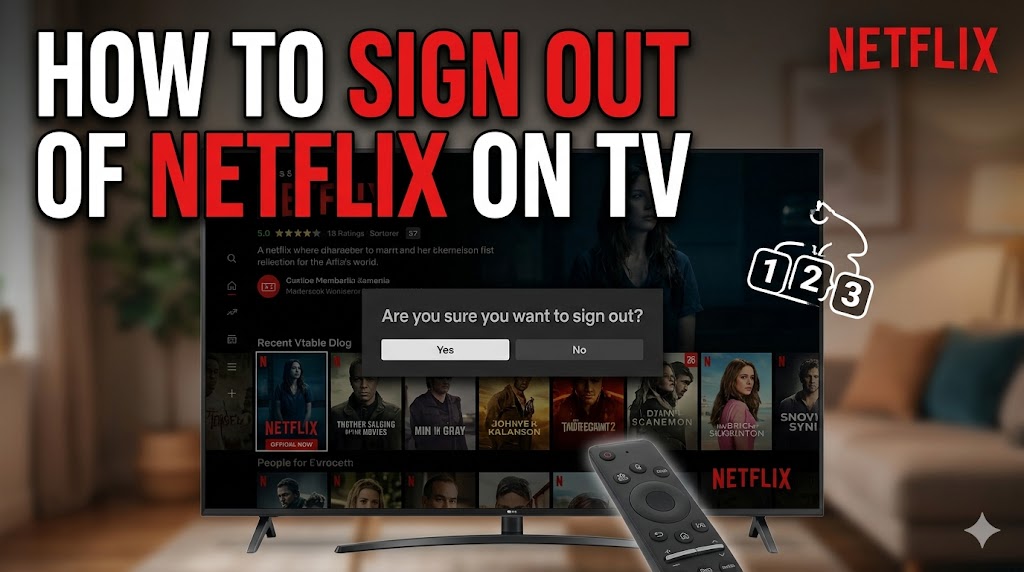
If you share your television with family members, friends, or guests, knowing How to Sign Out of Netflix on TV is important for protecting your account and maintaining your viewing privacy. Many users stay logged in on hotel TVs, old smart TVs, gaming consoles, or shared devices without realizing the risks. Signing out properly ensures that nobody else can access your profile, recommendations, or payment-connected account details.
Netflix offers multiple ways to log out depending on the type of TV or streaming device you use. Whether you own a smart TV, Roku, Fire TV Stick, Apple TV, PlayStation, Xbox, or Chromecast, the process is usually simple and quick. This guide explains the safest and easiest methods step by step.
Why Signing Out of Netflix Matters
Leaving your Netflix account active on a television can create several problems. Other users may accidentally change profiles, remove shows from your watchlist, or continue streaming using your subscription. In some cases, strangers may gain access to your account if you forget to log out from a hotel or rental property television.
Understanding How to Sign Out of Netflix on TV helps improve account security and prevents unauthorized access. It also helps maintain personalized recommendations and viewing history for every user profile.
How to Sign Out on Smart TVs
Open the Netflix Application
Turn on your smart TV and launch the Netflix app from the home screen. Make sure the account you want to remove is currently active.
Access the Netflix Menu
Using your remote control, navigate to the left-side menu. Scroll down and select the “Get Help” or “Settings” option depending on your TV brand.
Select Sign Out
Choose the “Sign Out” option and confirm your selection. After confirmation, Netflix will immediately log out from the device.
This is the easiest method for users searching for How to Sign Out of Netflix on TV without resetting the application.
Sign Out Using Streaming Devices
Roku and Fire TV Stick
On Roku or Fire TV devices, open Netflix and go to the settings section. Select “Sign Out” and confirm. The app will return to the login screen once completed.
Apple TV
Apple TV users can open Netflix settings directly from the profile section. Scroll down and click “Sign Out” to remove account access.
Gaming Consoles
For PlayStation or Xbox, launch Netflix and open the side menu. Go to settings and choose sign out. This method works similarly across most gaming consoles.
Remote Sign Out from All Devices
Sometimes users cannot physically access the television where Netflix is active. In such cases, Netflix allows remote logout from all connected devices.
Steps to Log Out Remotely
- Visit the official Netflix website
- Log into your account
- Open Account Settings
- Choose “Sign out of all devices”
- Confirm the action
This option is extremely useful if you forgot to remove your account from another television.
Common Issues While Signing Out
Some older TV models may not display a visible sign-out button. In such cases, reinstalling the Netflix app or resetting the app data can help. Internet connection problems may also delay the logout process temporarily.
Users learning How to Sign Out of Netflix on TV should always ensure the app is updated to the latest version for smoother navigation and security improvements.
Conclusion
Knowing how to properly log out of Netflix is essential for account safety and privacy. Whether you use a smart TV, streaming stick, or gaming console, the process usually takes only a few minutes. By understanding How to Sign Out of Netflix on TV, you can prevent unauthorized access, protect your viewing preferences, and manage your streaming experience more effectively.